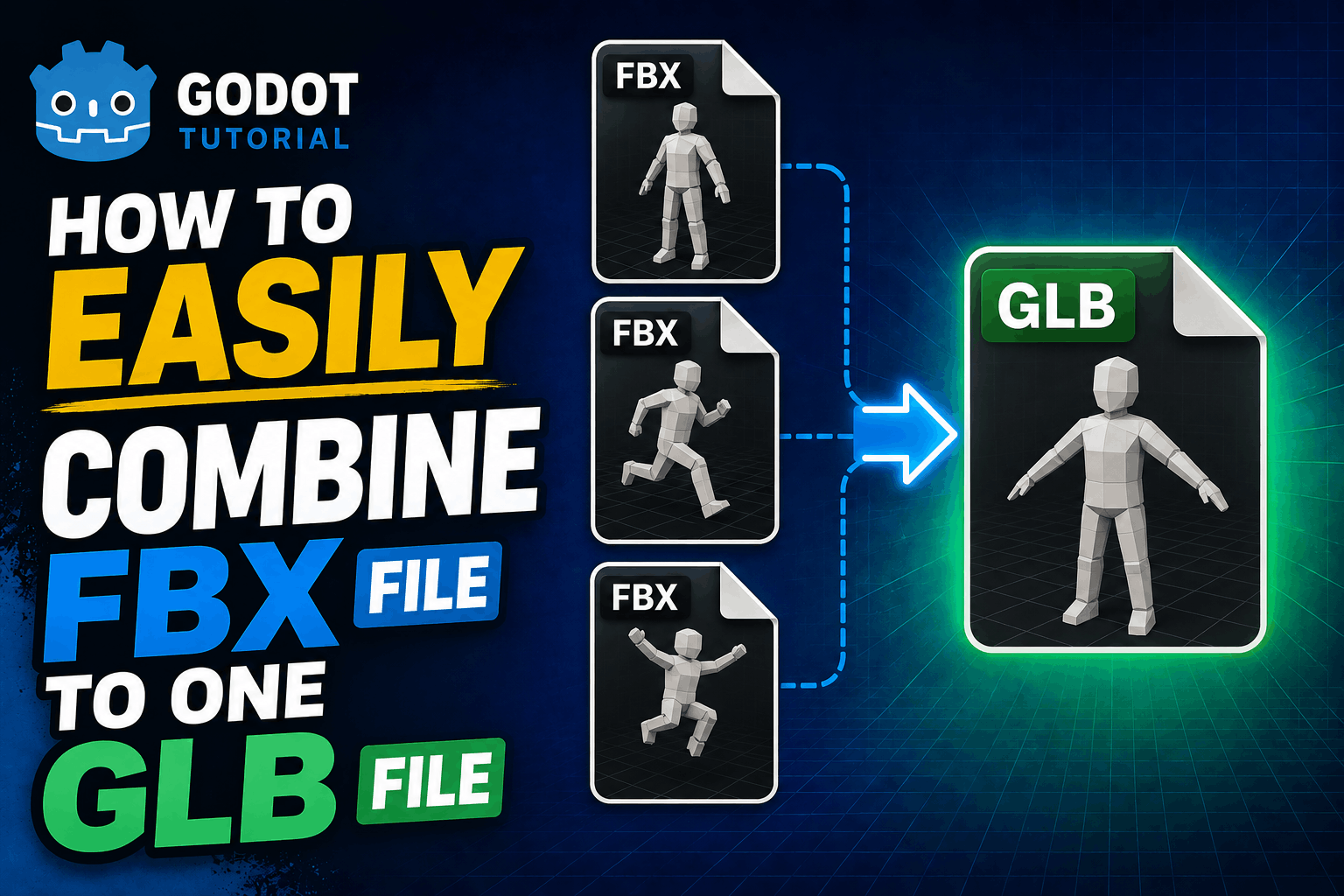
This is a very easy and straightforward way to take multiple Mixamo animation and combine them into one nice GLB file which you can later easily use with in your Godot Projects.
Prerequesites:
- You’re going to need to have Blender installed. For those of you who don’t know, Blender is a very nice open source 3D modeling application. You can get Blender here
- We need a plugin called “Animation Combiner” for Godot. You can get this plugin here
Installing the Animation Combiner Plugin.
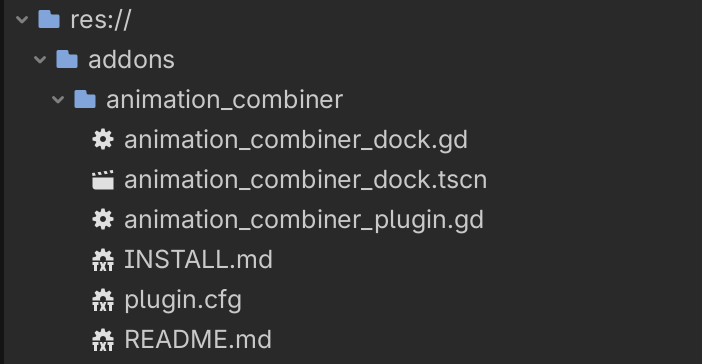
Take your downloaded zip file of the plugin and open your Godot project. Copy and paste it the res://addons . It should look like this:
Enabling the plugin:
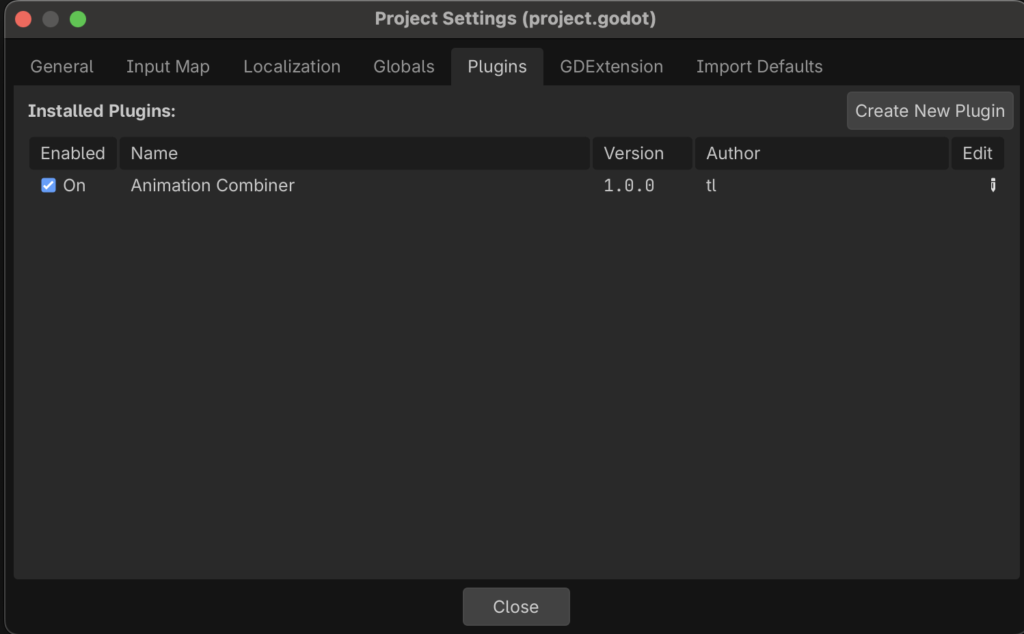
Go to Project -> Settings -> Plugins. You should see “Animation Combiner” on the list, tick on to enable it. And close the settings window.
Near the inspector you’ll see this AnimationCombinerDock
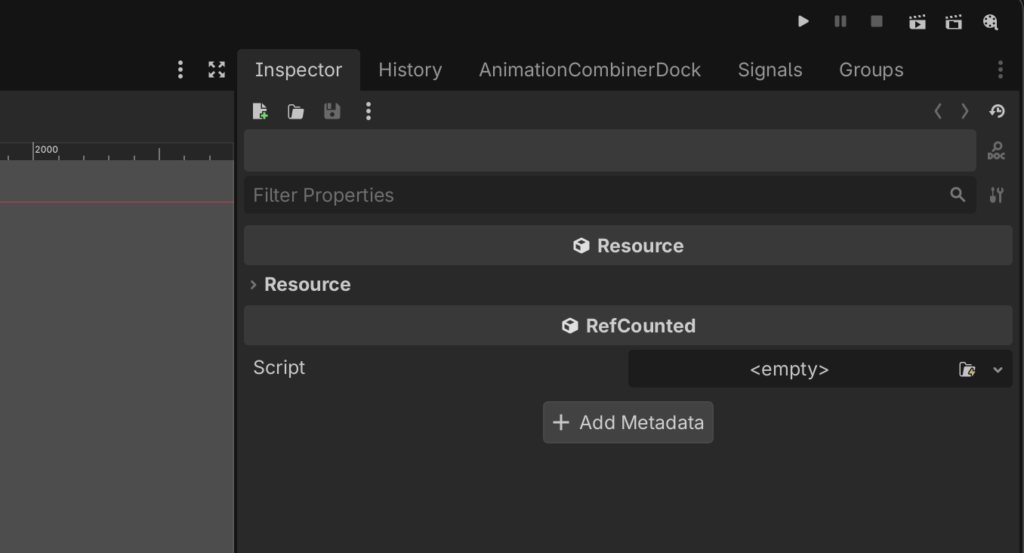
Click it. And you will see the following:
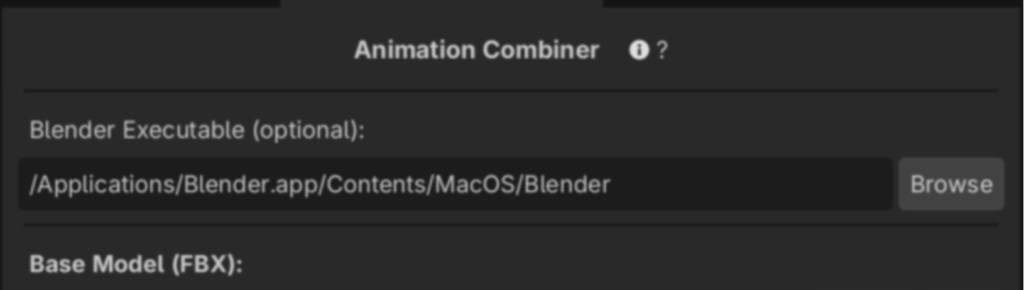
For now just set up your Blender path if you haven’t installed it in the default location.
Now we’re ready to combine animations. You will need one .FBX file to have your model (exported with skin) and the rest exported without skins (just the armature)
Getting Animations From Mixamo (Optional)
If you haven’t got any models/animations this section is for you. Go to mixamo.com and register there. Mixamo is a site where you can get free models and rigging animations there. You can even use your own model and have mixamo animate(rig) it for you. But for this tutorial we’ll use one of their available models.
In Mixamo choose a character and an animation for it. And download the first one with a skin.
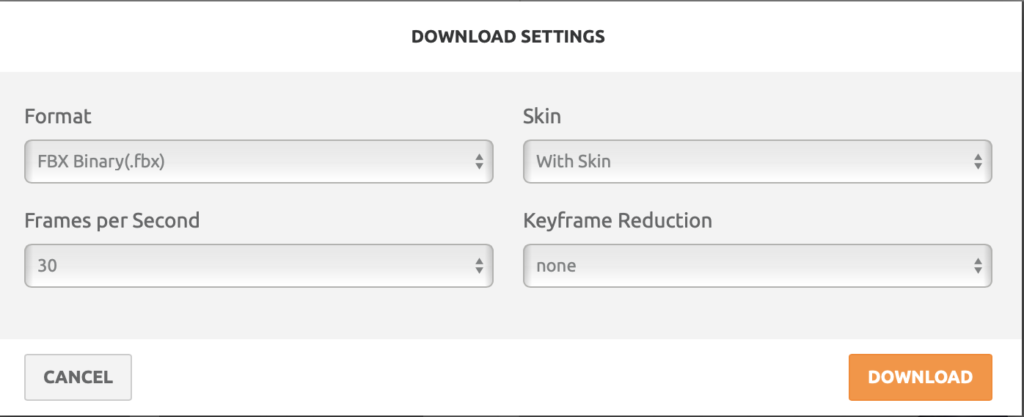
In all the next animations you will select without skin when downloading.
Put all your FBX files in one folder for convenience and now go back to Godot and open the Animation Combiner Dock.
In the Base Model field select your FBX file that is with the skin.
In the animations add all the remaining files + the one with the skin.
Choose the output folder of the GLB file and click the export combined file. And you should have a GLB file that you can import as an asset to your project.
Common Trouble Shooting
Blender not found error: This one is more common on MacOS, the location of Blender is /Applications/Blender.app/Contents/MacOS/Blender , you have to actually going into Blender.app and not just put Blender.app.
For Windows just put the Blender.exe file.
Animation file not found: Check if the file contains the .fbx , if it doesn’t have the extension the plugin might not work.